
Inspect Traces in Vega Apps
Tracing measures code execution time to identify performance bottlenecks. When your app has slow responses or delays, tracing reveals where your code spends time during execution, especially in frequently called functions or intensive operations.
Vega has built-in support for Perfetto, a tracing system for analyzing app performance. To track specific areas of your code, you can add trace points using Systrace, a React Native API that lets you emit traces from JavaScript.
This page provides steps to:
- Add traces in your app
- Record tracing data during execution
- Analyze execution times using Perfetto's visualization tools
- Analyze performance patterns in Perfetto
Video overview
Watch this video for an overview of using Perfetto.
Add traces in your app
Using Systrace, consider adding trace points in the following areas of your code:
- Functions that run frequently
- Operations that take a long time to execute
- Event handlers for user interactions
- Areas where you suspect performance issues
Tracing focus performance
When investigating slow focus behavior while scrolling a FlatList with TouchableOpacity components, add traces around the onFocus callback function.
Example:
//Example Systrace code in VegaVideoApp
	 import { Systrace } from "react-native";
	 const FocusableElement = ({
	   focusableElementRef,
	   children,
	   onPress,
	   onBlur,
	   onFocus,
	   getFocusState,
	   onFocusOverrideStyle,
	   style,
	   hasTVPreferredFocus,
	   ...otherProps
	 }: FocusableElementProps) => {
	   const [isFocused, setIsFocused] = useState(false);
	   const focusHandler = () => {
	     Systrace.beginEvent("VegaVideoApp:FocusedElement:onFocus"); // ---> Begin Trace
	     setIsFocused(true);
	     getFocusState?.(true);
	     onFocus?.();
	     Systrace.endEvent(); // ---> End Trace
	   };
	   const blurHandler = () => {
	     setIsFocused(false);
	     getFocusState?.(false);
	     onBlur?.();
	   };

	   return (
	     <TouchableOpacity
	       ref={focusableElementRef}
	       activeOpacity={1}
	       hasTVPreferredFocus={hasTVPreferredFocus}
	       onFocus={focusHandler}
	       onBlur={blurHandler}
	       onPress={onPress}
	       style={[style, isFocused ? onFocusOverrideStyle : undefined]}
	       testID={otherProps.testID}
	       {...otherProps}
	     >
	       {children}
	     </TouchableOpacity>
	   );
	 };
Systrace.beginEvent() call has a corresponding Systrace.endEvent(). If traces appear incomplete in Perfetto UI, check that early return statements or exceptions don't prevent Systrace.endEvent() from executing.Record app traces
After adding traces in your app's JavaScript code, rebuild and run your app on a Vega device. Then record the traces.
Step 1: Rebuild your app
Rebuild your app to incorporate the performance traces into the app bundle. Use a Release build configuration for accurate trace measurement. For build instructions, see Build Your App.
Step 2: Install and run your app
Install and run the rebuilt version of your app on a Vega-supported device. For instructions, see Run your app on Fire TV Stick.
Step 3: Record app traces
Record traces of the performance issue using:
-
Option 1: Vega Studio's Activity Monitor
-
Option 2: Command Line Interface
a. Run the
vega exec perf record --app-name <<interactive-component-id>>command to record a trace.b. Run the
vega exec perf activity-monitor --app-name <<interactive-component-id>>if the record command fails to work.For example, to record traces for a scrolling issue, follow these steps:
- Launch the app.
- Run Activity Monitor.
- Start recording.
- Perform scrolling within the app.
- Stop recording.
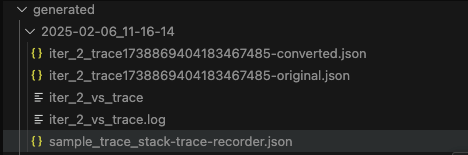
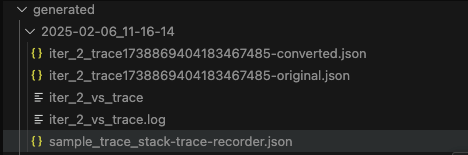
When recording is complete, Activity Monitor creates output files in your project's
generateddirectory. The name of the directory shows the recording timestamp.Activity Monitor generates the following trace files in your project directory:
FileName Description iter*_trace*_-converted.json JS CPU Profiler trace file in Trace Event Format compatible with Vega Studio. iter*_trace*_-original.json JS CPU Profiler trace file in Trace Event Format compatible with Chrome DevTools. iter*_vs_trace Perfetto Trace File *trace-recorder.json Trace file recorded by Activity Monitor.
You can open this file using Recording View to inspect data collected by Activity Monitor.
Analyze app traces in Perfetto UI
After collecting traces, use Perfetto UI to analyze the duration and call patterns of your custom traces.
-
Open your trace file in Perfetto UI.

- Choose Open trace file.
- Select the iter*_vs_trace file from the generated directory, or drag it onto the Perfetto UI webpage.
- Wait for the trace to load.
-
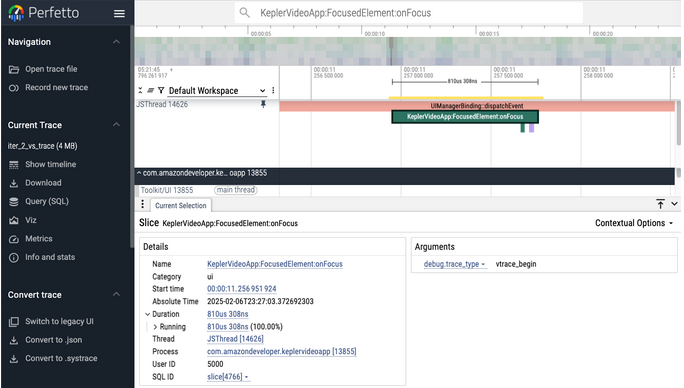
Enter the trace name in the top search bar to find your added traces. The following image shows a
VegaVideoApp:FocusedElement:onFocustrace added in theonFocushandler.
If you have the Vega Studio extension installed, you can open trace files directly in VS Code:
- Go to your project's generated directory in VS Code.
- Choose the trace file you want to view. The file opens in the Perfetto UI within VS Code.
For each trace:
- Analyze the duration across all occurrences to verify expected behavior.
- Check any stacked traces to confirm the expected call pattern.

Analyze performance patterns in Perfetto
Beyond inspecting individual traces, Perfetto helps you identify broader performance patterns that impact fluidity and responsiveness. The following subsections walk through common analysis techniques.
Analyze event processing time
The UIManagerBinding::dispatchEvent slice shows how long each UI event takes to process on the JS thread. Each slice has a debug.type argument that identifies the event type. For focus and blur analysis, look for slices where debug.type is topFocus or topBlur.
Long event durations indicate blocking work in your event handlers.
To analyze event processing time:
- In Perfetto UI, search for
UIManagerBinding::dispatchEventin the search bar. - Choose a slice to view its details.
- In the details panel, check the
debug.typeargument to identify the event type (for example,topFocus,topBlur,topLoad). - Review the duration of focus and blur event slices. These events should complete well under 16ms.
- Look for patterns in the event durations. For example, if
topFocusevents consistently take 50ms, this points to blocking work inside youronFocushandler.
For techniques to optimize event handlers, see App Performance Best Practices. To investigate JS thread activity in more detail, see Investigate JavaScript Thread Performance.
The following table shows example metrics from a sample app with blocking work in its event handlers. Your values will vary depending on your app's implementation.
| Metric | Value |
|---|---|
| Max event duration | 52.66ms |
| Avg event duration | 17.39ms |
| Focus events (~50ms) | 21 events |
| Blur events (~22ms) | 4 events |
In this example, focus events taking 50–52ms directly correspond to synchronous blocking work in the focus handler. Blur events at ~22ms indicate similar blocking work in the blur handler.
To generate these metrics from your own trace, run the following SQL query in Perfetto's query editor (Query (SQL) tab):
SELECT
  EXTRACT_ARG(s.arg_set_id, 'debug.type') AS event_type,
  COUNT(*) AS count,
  AVG(s.dur) / 1e6 AS avg_duration_ms,
  MIN(s.dur) / 1e6 AS min_duration_ms,
  MAX(s.dur) / 1e6 AS max_duration_ms
FROM slice s
WHERE s.name = 'UIManagerBinding::dispatchEvent'
GROUP BY event_type
ORDER BY avg_duration_ms DESC;
This query groups all UIManagerBinding::dispatchEvent slices by their debug.type (for example, topFocus, topBlur, topLoad) and calculates the count, average, minimum, and maximum duration for each type.
UIManagerBinding::dispatchEvent slice to see its exact duration and any nested function calls. This helps you pinpoint the code causing the delay.For a visual walkthrough of navigating traces in Perfetto, see the animation in Analyze frame timing.
Analyze frame timing
For fluidity issues, examine the frame slices to identify dropped frames during navigation or scrolling.
The following animation shows how to find long frames in Perfetto UI:

To analyze frame timing:
- Find the
frametrack under your app's process in Perfetto UI. - Identify frames that exceed 16.67ms (the budget for 60fps rendering). Long frames appear as wider bars in the timeline.
- Zoom in on areas where frames are longer than expected.
The following table shows example frame timing metrics from the same sample app. Compare these against your own trace data to assess your app's fluidity.
| Metric | Value |
|---|---|
| Total frames | 468 |
| Frames over 16ms | 6 |
| Frames over 33ms | 1 |
| Frames over 50ms | 1 |
| Max frame duration | 62.94ms |
| Avg frame duration | 3.11ms |
A frame taking 62.94ms means the app dropped approximately four frames (62.94ms / 16.67ms ≈ 4). This data correlates with the "5+ Consecutive Dropped Frames" KPI from the KPI Visualizer. For more on fluidity metrics, see Measure App KPIs. To investigate UI rendering issues, see Identify UI Rendering Issues.
To generate a frame timing summary from your own trace, run the following SQL query in Perfetto's query editor (Query (SQL) tab):
WITH stats AS (
  SELECT
    COUNT(*) AS total_events,
    SUM(CASE WHEN s.dur / 1e6 > 16 THEN 1 ELSE 0 END) AS over_16ms,
    SUM(CASE WHEN s.dur / 1e6 > 33 THEN 1 ELSE 0 END) AS over_33ms,
    SUM(CASE WHEN s.dur / 1e6 > 50 THEN 1 ELSE 0 END) AS over_50ms,
    MAX(s.dur) / 1e6 AS max_dur_ms,
    AVG(s.dur) / 1e6 AS avg_dur_ms
  FROM slice s
  WHERE s.name = 'UIManagerBinding::dispatchEvent'
)
SELECT 'Total events' AS Metric, CAST(total_events AS TEXT) AS Value FROM stats
UNION ALL
SELECT 'Events over 16ms', CAST(over_16ms AS TEXT) FROM stats
UNION ALL
SELECT 'Events over 33ms', CAST(over_33ms AS TEXT) FROM stats
UNION ALL
SELECT 'Events over 50ms', CAST(over_50ms AS TEXT) FROM stats
UNION ALL
SELECT 'Max duration', PRINTF('%.2fms', max_dur_ms) FROM stats
UNION ALL
SELECT 'Avg duration', PRINTF('%.2fms', avg_dur_ms) FROM stats;
This query counts how many events exceed common frame budget thresholds (16ms for 60fps, 33ms for two dropped frames, 50ms for three or more) and reports the max and average durations.
Correlate JS work with frame drops
The key insight from Perfetto analysis is the correlation between JS thread blocking and frame drops. When the JS thread is busy with synchronous work, both fluidity and responsiveness suffer. For a visual reference, see the animation in Analyze frame timing.
A typical sequence looks like this:
- User presses a D-pad button (for example, RIGHT).
- The
onFocushandler is called on the newly focused element.- Blocking work (such as a synchronous data check) holds the JS thread.
- Non-native animations add more JS thread work.
- During this time, multiple frames can't be rendered.
- The user sees stuttering and delayed focus movement.
To identify this pattern in Perfetto:
- Find a region with dropped frames in the
frametrack. - Check the JS thread activity near the frame track during the same time window.
- Check if long
UIManagerBinding::dispatchEventslices overlap with the dropped frames.
When you see JS thread blocking aligned with frame drops, the root cause is typically synchronous work or non-native animations in event handlers. For optimization techniques to address these issues, see App Performance Best Practices.
Related topics
- App Performance Best Practices
- Measure App KPIs
- Identify UI Rendering Issues
- Detect Overdraw
- Investigate Component Re-rendering Issues
Last updated: Mar 20, 2026
