
STEP 1:
Create a Streaming Media App
Create a Streaming Media App
Now, let's take a closer look into the first and most basic component of an Android app for Fire TV, the BrowseFragment.
After you launch your created TV Android app, built using the Android Studio App Wizard, you will encounter an interface that will look similar to this:
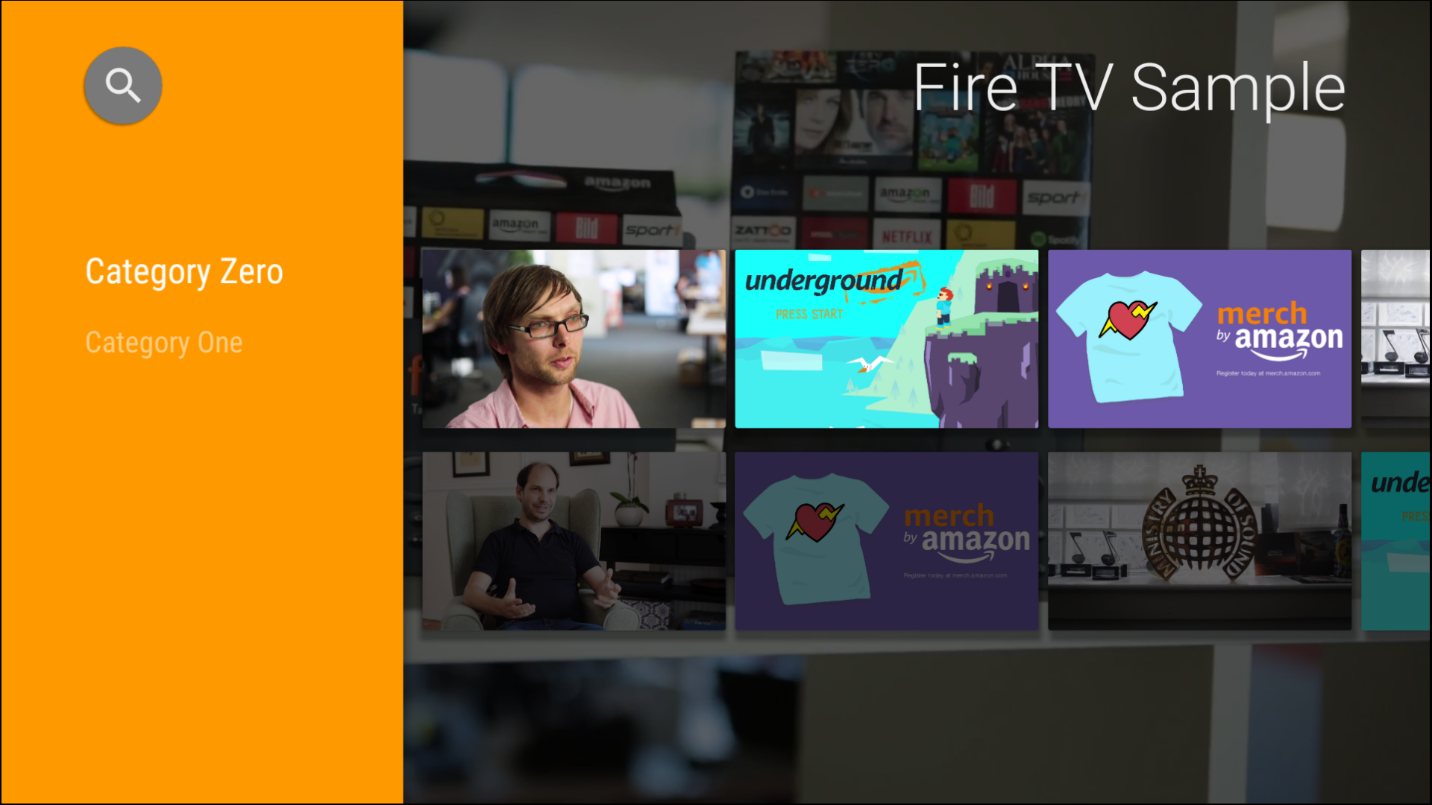
Everything you see in this activity is generated inside a class called BrowseFragment. The BrowseFragment creates an interface to allow the user to easily browse content within the app, most typically videos or movies.
The BrowseFragment itself is composed by two sub-fragments: the HeadersFragment and the RowsFragment.

The HeadersFragment shows the header of each row of content, and it can be shown or hidden. Typically it contains the "category" of the content contained in that specific row.
The RowsFragment contains the rows of contents, displayed as video thumbnails. You will see how to populate these content rows using ObjectAdapters.
BrowseFragmentContent rows are horizontal lists populated through Adapters, which arrange the content using classes dedicated to define the look and feel of the app called Presenters.
In order to populate a single row of content, you will use an ArrayObjectAdapter, which you'll call listRowAdapter. This adapter is responsible for displaying the content of a single row.
For this example, let's also assume you defined a class called "movie" that contains all the information for a movie, like title and description.
Finally, you have a HeaderItem that you will use to define the header of the row. You could, for example, define the "comedy" category.
Here is a visual representation of what a listRowAdapter and HeaderItem would look like:

Let's assume you have a method SetupMovies, which populates a list of movies that you can then pass to the Adapter. The following code is what you will use to populate a single row and define the header item.
public class MainFragment extends BrowseFragment {

    private void loadRows() {

	//let's generate the list of movies
        List list = MovieList.setupMovies();

//The CardPresenter defines the UI of the items in the row
CardPresenter cardPresenter = new CardPresenter();

//Create the adapter for the row
        ArrayObjectAdapter listRowAdapter
                             = new ArrayObjectAdapter(cardPresenter);

	//let's populate the Adapter
	for (Movie movie:list) {
            listRowAdapter.add(movie);
        }

        //Create the header of this row
        HeaderItem header = new HeaderItem(0, "Comedy");

      }
    }
Usually a media streaming app would have more than a single row of content. So, you must add multiple Adapters to your BrowseFragment. The easiest way to do this is to have a higher-level Adapter that can manage multiple ListRowAdapters. You can call this class RowsAdapter.
The RowsAdapter contains multiple ListRowAdapters and has its own Presenter to define how the rows of content should be displayed.

You will populate the RowsAdapter by adding multiple listRows, combining listRowAdapters and relative HeaderItems. To do that, you use the class ListRow that receives HeaderItem and ArrayObjectAdapter as parameters.
public class MainFragment extends BrowseFragment {
 ...

     //create a RowsAdapter
     ArrayObjectAdapter rowsAdapter
		= new ArrayObjectAdapter(new ListRowPresenter());

     //add multiple rows
     rowsAdapter.add(new ListRow(headerItem1, listRowAdapter1));
     rowsAdapter.add(new ListRow(headerItem2, listRowAdapter2));


     setAdapter(mRowsAdapter);
   }
When you call setAdapter, you populate all the rows in the BrowseFragment and it displays the main interface.
Continue on to the next step: Step 4: Edit the User Interface Through Presenters.
Last updated: Oct 29, 2020
Supported devices

© 2010-2026, Amazon.com, Inc. or its affiliates. All Rights Reserved.